
Incumbent Property
The Incumbent Property Tab
The Incumbent Property area stores details of any property items which are actually issued to this incumbent.
Property items added to an incumbent will automatically display in the linked employee file, and vice versa.
Adding a Property Item
- Go to Navigator > HR > Position and Incumbents.
- Select the required Position.
- Click on the Incumbent(s) tab, highlight the required incumbent and click the Editbutton.
- Click on that incumbent's Property tab.
- Click on the Add New button and complete the following information as required:
| Field | Explanation |
| Type | From the drop down list select the Property Type as it has been defined in the HR Validation Tables, or select <<Add New>> to create one as you work. |
| Property | The list of Property items is dependent on the Property Type selected. Choose one from the list or select <<Add New>> to create one as you work. |
| Supplier | Select the company that supplies this Property. |
| Contact | If you have selected a Supplier Company you can select the person from that Company you have as a Contact. |
| Manager | Select the Manager/Person who is responsible for this item. |
| Warranty | Enter the Warranty information for this property item. |
| Description | Enter a description for the Property item. |
| SerialNo | Enter the Serial Number. |
| AssetNo | Enter the Asset Number. |
| Purchased Date/Time | Enter the date & time on which the Property was purchased. |
| Issued Date/Time | Enter the date & time on which the Property was issued to the employee. An entry will appear in the planner to reflect this information. |
| Returned Date/Time | Enter the date & time on which the employee returned the item. An entry will appear in the planner to reflect this information. |
| Cost | Enter the cost of the Property to replace. |
| Replace Date/Time | Enter the date & time on which the item should be upgraded or replaced. |
| Brief Notes | Add any applicable notes. |
- Click OK to save changes and close the window.
Photos/Images
Photos or images relating to Property can be added when you are adding the Property item, or when you later edit the Property.
There are two options:
1: 'Add Photo' Option
- In the Property window, right click in the area to the right of the Details and select Add Photo from the menu displayed:

2: Document Store Option
- In the Incumbent's Property tab, double click the relevant property item, then select the Documents tab.
- This area lists any photos/images already added.
Instead of clicking Add New here, click the Document Store button and add the appropriate image. - See Document Store for more information.
If you want to add more photos to the property item for this incumbent, right click on the area and choose Add Photo or go to Document Store again.
If you add multiple images to this area, thumbnails of the images are displayed in the bottom half of this pane.
You may add notes, or specify properties, or publish the photo - see Editing Documents and Images.
Apply Related Property to Incumbents
Any default Property items which have been defined for a Position can be copied to incumbents of that position, and then modified as required.
To do this:
- Go to the Position node and select the required position.
- Click on the Incumbent(s) tab.
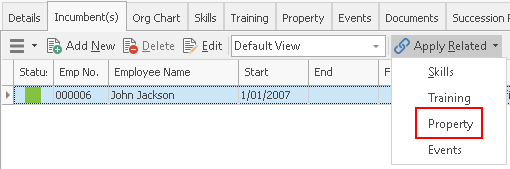
- Click on the Apply Related drop-down arrow and select the Property option.
- Click next in the Apply Related Position Property Wizard pop up window, to Apply the Property to that position.
- Select the relevant Property to apply and click Next.
- Click Next on the Position and Employee screen.
- Click OK to close the wizard once the Property has been applied.
You can then edit the incumbent and add any specific details to the Property item as described above.